01
Fly your way
Start with the tested Classic direct layout, choose inverted pitch or use the game's saved setup. The console also shows live stick response, samples drift and tunes deadzone and sensitivity.
Version 1.0.0Unofficial fan toolFree · Open source
More commands, fewer compromises. Flight Control is a free, handheld-first controller add-on for Fate of the Galaxy. It brings D-pad command wheels, tap/hold actions, gamepad-friendly menu navigation and a deeply configurable layout to the Windows game.
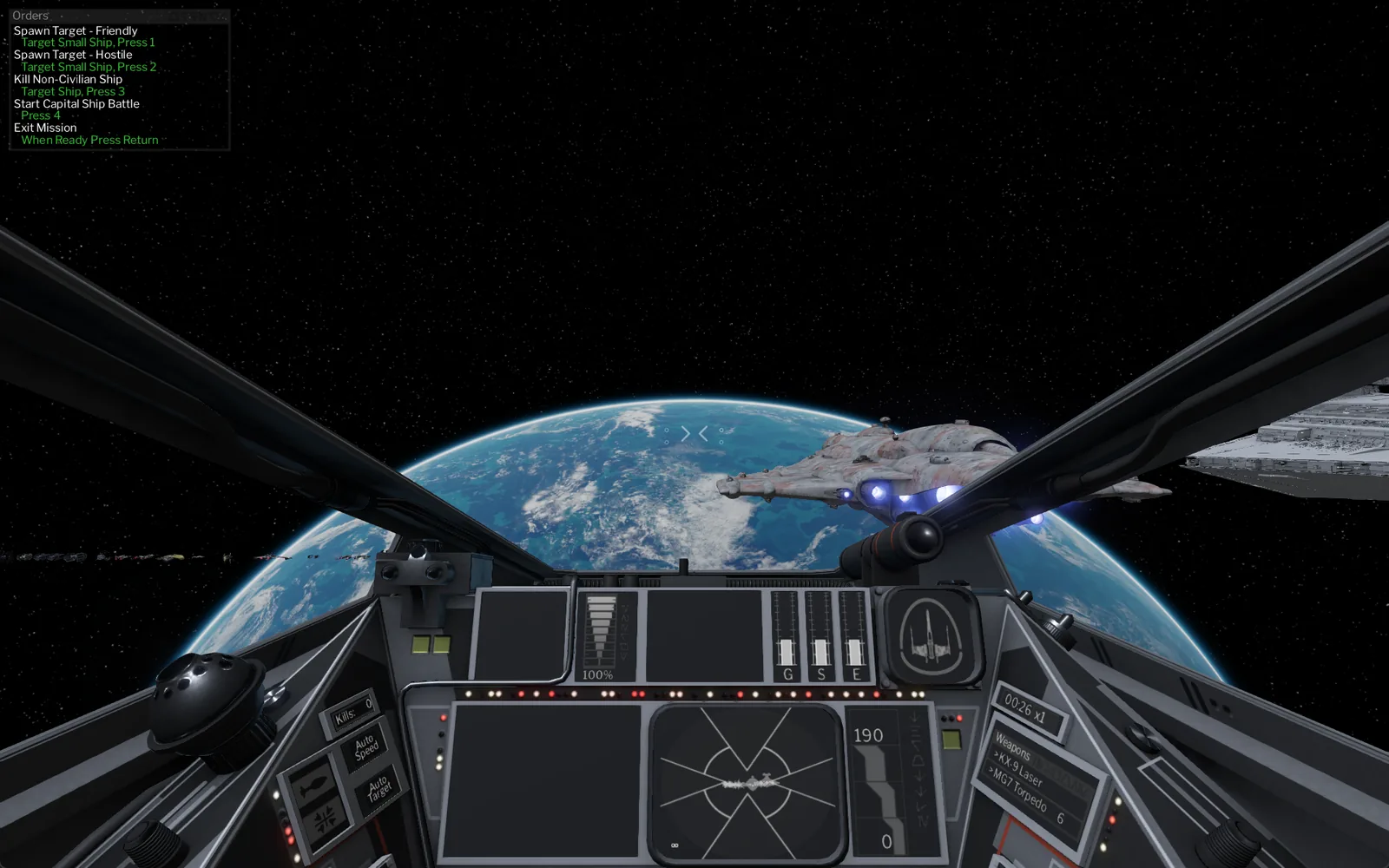
I started building it to play FotG on my Legion Go 2 when the game launched without gamepad support. Native bindings arrived while I was working on it, but I kept going: there are more cockpit commands than comfortably fit on a controller, and many menus still feel designed for a PC. Flight Control is my attempt to make both flying and navigating feel natural with a gamepad alone.
DownloadRead the helpView source
An independent, unofficial fan-made add-on. Fate of the Galaxy is a separate download and is not included.
Command wheels
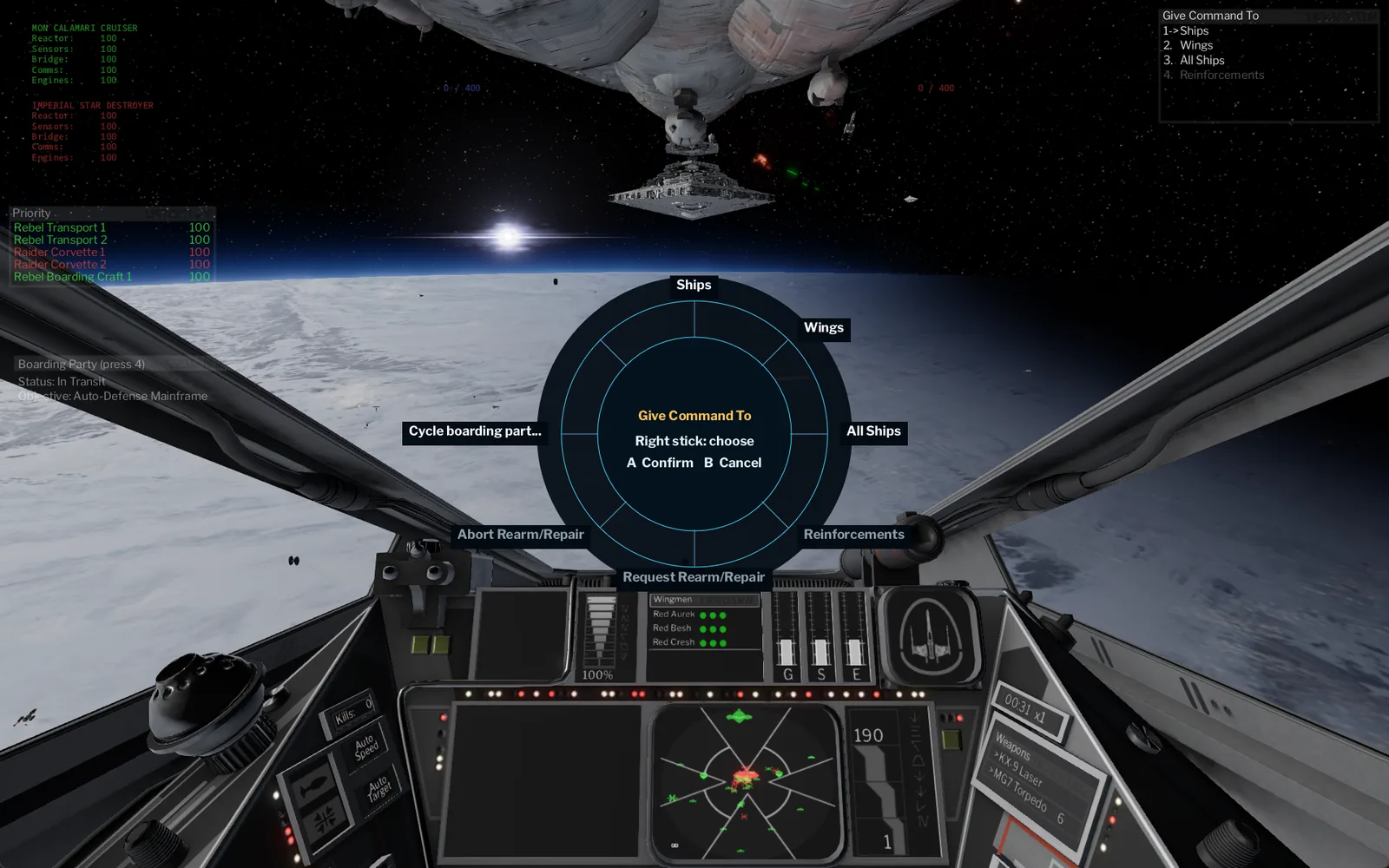
Inspired by the command wheels in MechWarrior 5 and adapted for FotG, the default layout puts squad orders, ship systems, targeting and four configurable macros on the D-pad. Tap a direction to open a wheel, aim with the right stick, then press A to select or B to cancel. The goal is to keep useful commands close without asking a gamepad to have keyboard-sized numbers of buttons. Try it below.
D-pad down
The live communications menu from the game itself: ships, wings, all ships and reinforcements, with pages when an order list runs past eight entries.
Hold instead of tap and the same D-pad direction looks up, behind, left or right around the cockpit, then re-centres on release. The delay is adjustable from 150 to 600 ms, or look-around can be switched off. Hold Menu to cycle Cockpit, Chase and External views. Tap/hold goes further in the console: A, B, X, the bumpers and the stick clicks can each run a second action on a long press while keeping their usual action on a quick press.
Default layout
The included Classic direct layout is the setup I arrived at while testing on handheld PCs: right stick for pitch and yaw, left stick for roll and relative throttle, with an inverted-pitch preset available. It is ready to try, but the console exists because every player has different habits. Switch flight-axis presets, add long-press actions, rearrange the command wheels and make the controls feel like yours.
| Input | In flight | In menus |
|---|---|---|
| Right stick | Pitch and yaw · choose a wheel segment | Move pointer |
| Left stick | Roll and relative throttle | Move pointer |
| RT / LT | Primary fire / secondary fire | RT clicks |
| A | Target ship in reticle · confirm wheel choice | Select |
| B | Target closest attacker · cancel wheel | Back |
| X / Y | Cycle target class / B-wing and T-Blade third gun | Enter / Backspace |
| LB / RB | Cycle secondary bank / ship mode (gun control, burst fire, S-foils, targeting computer) | Previous / next tab |
| L3 / R3 | Match target speed / cycle subsystems | — |
| D-pad | Tap for a wheel · hold to look | Move through choices |
| Menu | Tap to pause · hold to change camera | Enter |
What it adds
01
Start with the tested Classic direct layout, choose inverted pitch or use the game's saved setup. The console also shows live stick response, samples drift and tunes deadzone and sensitivity.
02
Open squad, systems, targeting and macro wheels from the D-pad. Tap and long-press actions make better use of limited controller buttons, while readable wheel labels help you choose in flight.
03
Use the D-pad and A/B for ordinary menu navigation. On screens that need a pointer, steer it with a stick. This matters especially on handheld PCs, where reaching for a mouse or keyboard breaks the flow.
04
Change wheel ordering, add long-press actions and explore four custom macro slots in the Flight Control Console. The macro page is deliberately open for experimentation. Save and share layouts as JSON profiles.
Install in five steps
Setup locates the game, checks compatibility, backs up your pilot controls and creates separate Flight Control launchers. It leaves the game's files and original launcher untouched.
kn_portable.Close the game before installing, repairing or changing pilot settings. The original launcher remains available without the wheel.
Flight Control Console
I built a layout that felt right to me, but not everyone flies the same way. The included console lets you adjust it rather than live with someone else's choices. Open Configure Gamepad Wheel.exe while the game is closed; changes save with a backup and load after restarting the game.
Download
Extract the complete ZIP and run Setup.exe. Fate of the Galaxy and its engine are separate and are not included.
FotG Gamepad Wheel · for Fate of the Galaxy 1.1.0 and 1.1.1
Flight Control has been tested on a Lenovo Legion Go 2, ROG Ally X, Xbox controllers and generic gamepads, with Fate of the Galaxy 1.1.0 and 1.1.1. Testing has focused extensively on practice missions, refining how the controls feel while flying. The campaign and multiplayer have not yet been tested. Some mission-specific screens may still call for the stick-controlled pointer.
This is the first public release, and I'd love to see how it holds up beyond my own practice sessions. Put it through campaign missions, try your own configurations, and send bugs, awkward interactions or ideas for improvement to [email protected].
Setup backs up existing pilot controls, and the console restores them with one button. See Restore and uninstall.
In PowerShell: Get-FileHash .\FotG-Flight-Control-1.0.0.zip should print the SHA-256 shown here.