Before you start #
- Windows 10 or 11, x64, with .NET Framework 4.x (included with Windows).
- Fate of the Galaxy 1.1.0 or 1.1.1 for Windows with its bundled FSO 26.0.1 SDL3 engine. The game is a separate download from its creators and is not included.
- A native pilot: run the unmodified game once, create a pilot, and exit.
- An XInput gamepad (Xbox-style controllers and handheld PCs in gamepad mode). Connect it before running Setup.
Flight Control is additive. It installs into its own GamepadMods/FotG_Gamepad_Wheel folder and adds two launchers. It does not edit the game's tables, scripts, campaigns or saves, and the original launcher keeps working without it.
Install #
- Install Fate of the Galaxy. Launch it normally, create a pilot, and exit.
- Download the Flight Control ZIP and extract the whole folder. Running Setup from inside the ZIP, or copying only the EXE, leaves out files it needs.
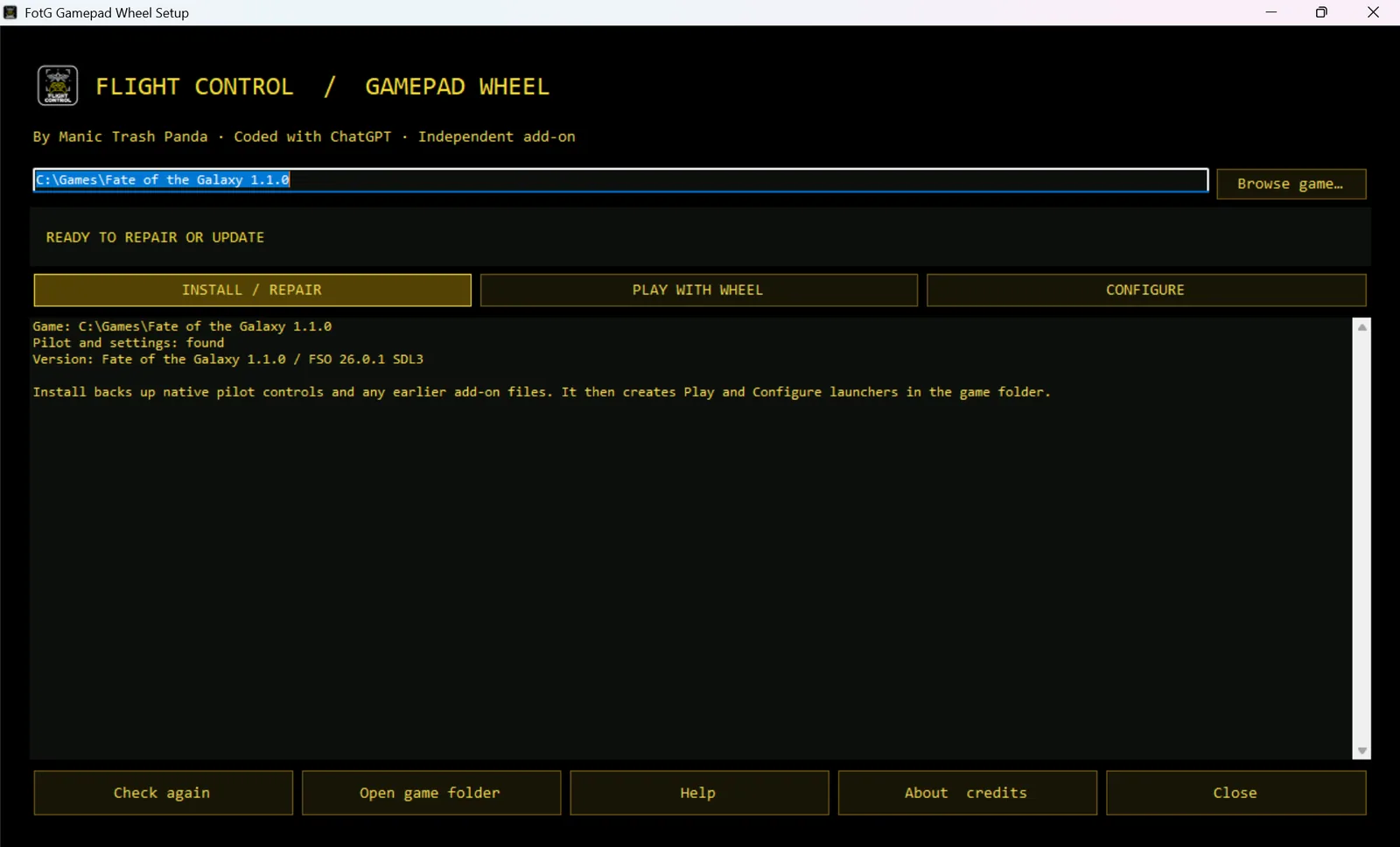
- Double-click Setup.exe. It finds common game locations. If it doesn't find yours, use Browse game… and select the folder that contains
kn_portable. - Click Install / Repair. Setup checks the game version (1.1.0 or 1.1.1) and engine, backs up existing pilot controls and any earlier Flight Control files, detects your controller through the game's SDL3 library, and selects it in the wheel's launch profile.
- Click Play with Wheel. Setup also creates Play with Gamepad Wheel.exe and Configure Gamepad Wheel.exe in the game folder for later.
Keep the small bridge running in the system tray while you play: it reads the D-pad and right stick for the wheels and handles menu navigation.
Close the game before installing, repairing or changing pilot settings. If you create a new pilot later, open the console and press Reserve wheel buttons for that pilot.
Installing without the graphical Setup
Advanced users can run the same script Setup uses from PowerShell:
.\Install.ps1 -GameRoot 'C:\path\to\Fate of the Galaxy'
Add -SkipPilotReservation to install the files without changing pilots, then press Reserve wheel buttons in the console for each pilot before testing.
What Install changes
- Copies
GamepadMods/FotG_Gamepad_Wheeland creates the two launchers. - Uses a separate
GamepadMods_settings.iniprofile for the wheel launcher, backing up any earlier one. - Backs up each existing native v4 pilot, then reserves the A, B, X, Y, LB, RB, Start, L3, R3 and D-pad joystick bindings so they reach the wheel instead of firing the original action at the same time. RT becomes primary fire.
- Leaves keyboard bindings, game scripts, the engine, campaigns and saves in place.
Flight controls #
The default Classic direct (tested) layout steers with the right stick and rolls and throttles with the left.
| Input | In flight (no wheel open) | With a wheel open |
|---|---|---|
| Right stick | Pitch and yaw | Point at a segment |
| Left stick | Roll and relative throttle | Native flight |
| RT | Primary fire | — |
| LT | Secondary fire; hold to repeat where the weapon allows | — |
| A | Target the ship in the reticle | Confirm |
| B | Target the closest ship attacking you | Cancel |
| X | Cycle the target class chosen on the targeting wheel (enemies by default) | — |
| Y | Hold to fire the third gun on B-wings and T-Blade bombers; no action on other ships | — |
| LB | Cycle the secondary bank used by LT | — |
| RB | Change ship mode: Falcon gun control, TIE burst fire, S-foils, or targeting computer | — |
| L3 / R3 | Match target speed / cycle subsystems on the targeted ship | No action |
| D-pad | Tap to open a wheel, hold to look around | Tap the same direction to close |
| Menu / Start | Tap to pause, hold 500 ms to change camera | — |
Prefer the opposite vertical direction? Choose Classic inverted pitch under Flight Axes in the console. Game's saved setup stops applying a Flight Control preset and leaves the game's bindings alone (the stock 1.1 default steers on the left stick and has no throttle axis). Save Wheel and restart the game after switching, and recheck any custom button bindings.
Command wheels #
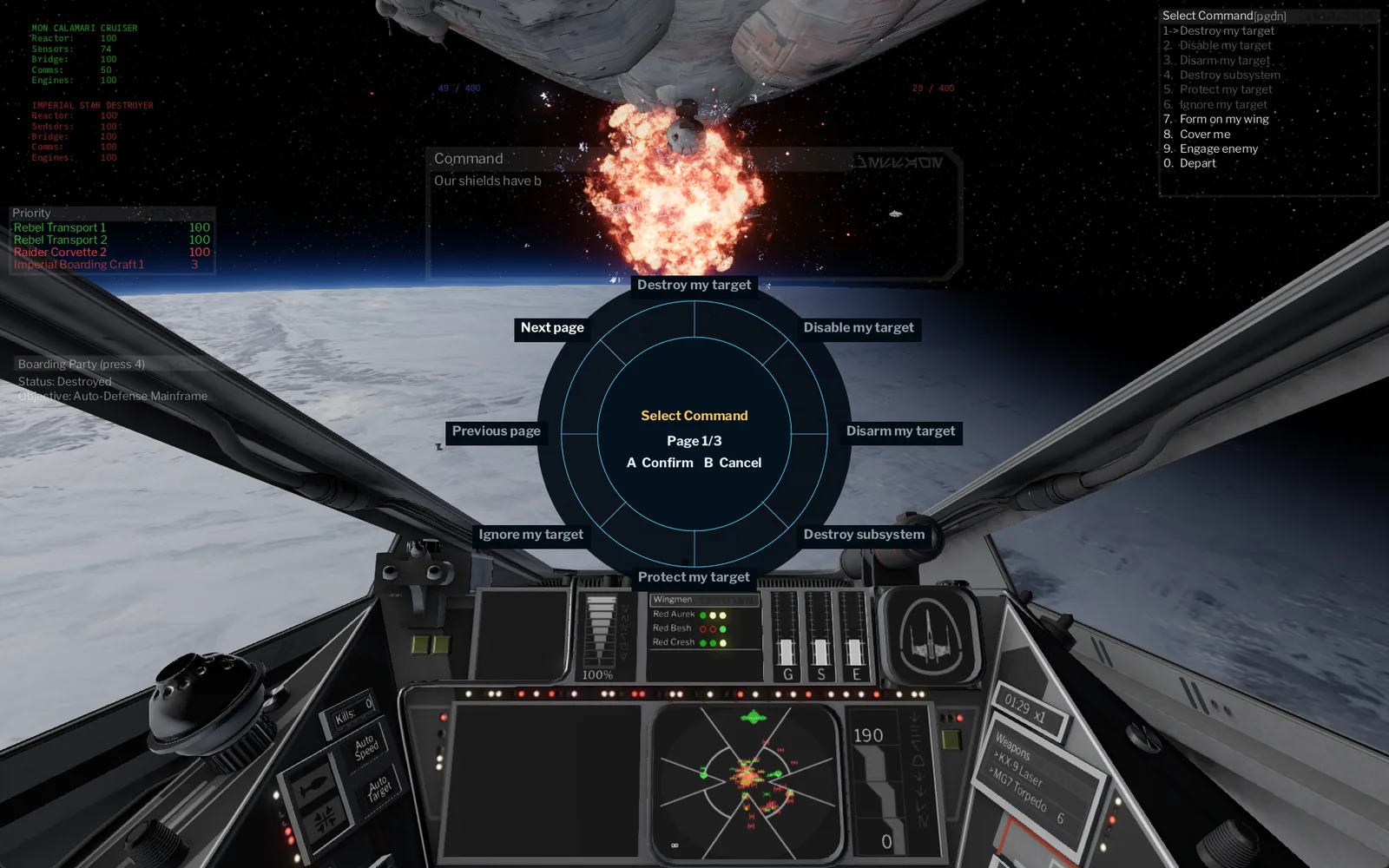
Tap a D-pad direction to open its wheel. Let the right stick return to centre, point it toward a segment, then press A. B cancels; tapping the same direction closes the wheel.
Down — Squad commands
Built from the game's live communications menu, so it shows the same recipients and orders the mission allows: ships, wings, all ships and reinforcements. Lists with more than eight entries get Next page and Previous page segments. Depart and warp orders need a second A. In Assault missions the wheel adds Cycle boarding party task, the same action as keyboard 4.
Up — Ship systems
All energy to shields, weapons or engines; balance energy; equalise shields; transfer energy to shields or lasers; match target speed. Energy actions are single-player only.
Left — Targeting
Choose which ships X cycles (enemies, friendlies or all ships). Choosing a class does not change your current target. The wheel also offers Target subsystem / Target hull, Subsystem in sight, Next live turret and Clear target. Subsystem choices are disabled when the target has no eligible parts.
Right — Macros
Four slots you set in the console. See Macros.
Readability
Wheel labels sit on near-opaque dark backplates with bright text and an amber selection outline. In the console, set Wheel Text to Medium (20 px) or Large (30 px), with Bold on or off. Medium Bold is the default; Large may crowd low resolutions.
Look around and camera #
Hold a D-pad direction past the configured delay to look up, rear, left or right. Release to centre the view. A short tap still opens the wheel, without a view shift.
- D-pad hold to look sets the delay from 150 to 600 ms (250 ms by default).
- Disable look around makes every D-pad press open its wheel immediately.
- Hold Menu cycles camera (on by default): each 500 ms hold advances Cockpit → Chase → External → Cockpit. Turn it off if you want Menu to pause only.
Menus keep immediate D-pad navigation whatever these settings are. Save Wheel and restart the game after changing them.
Flight Control Console #
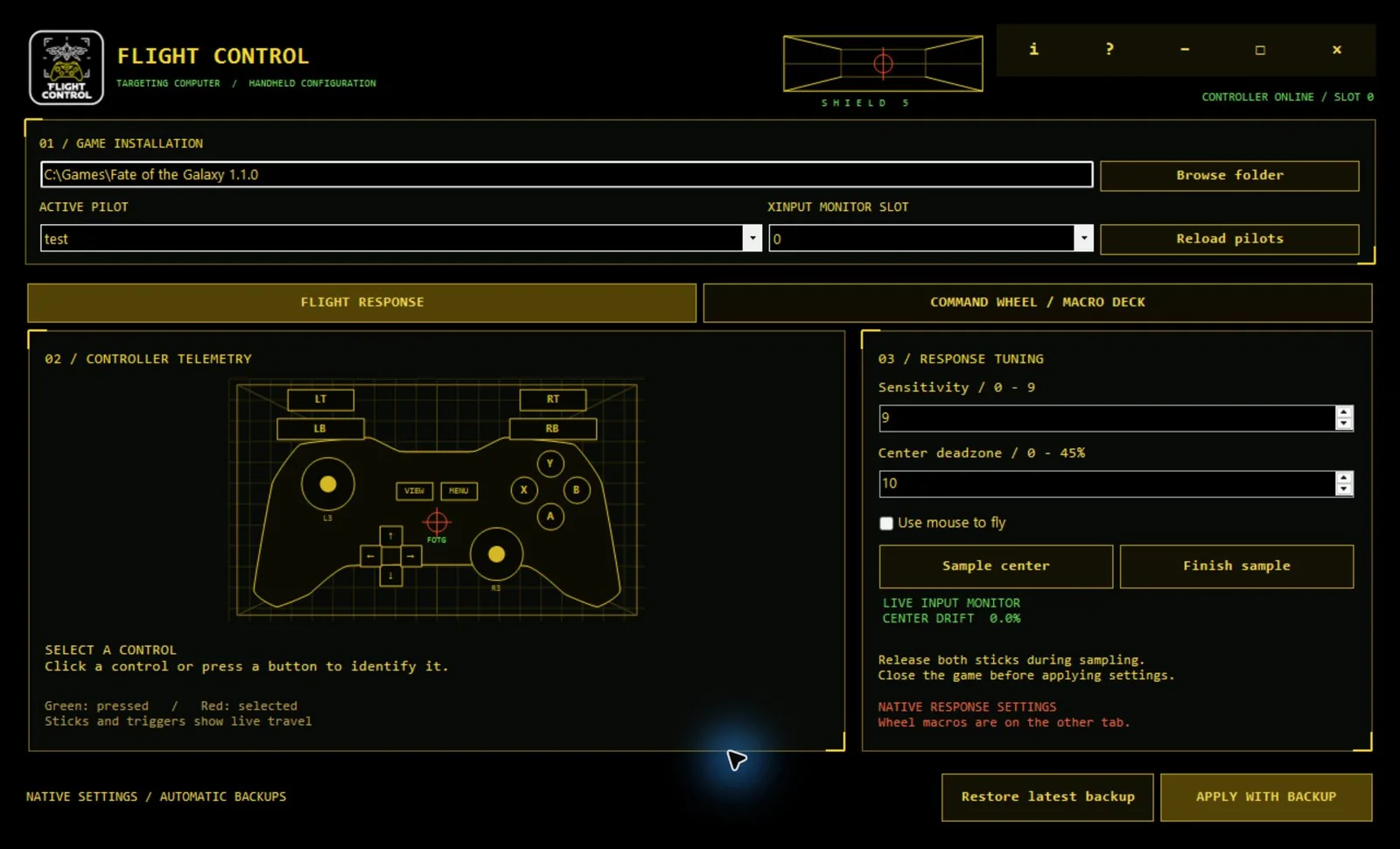
Open Configure in Setup or Configure Gamepad Wheel.exe in the game folder. Close the game first: saving is blocked while any FreeSpace Open engine is running.
- Check the game folder (the one with
kn_portable). Use Browse folder to correct it. - Choose the Active pilot. Reload pilots refreshes the list after you create one.
- Choose the XInput monitor slot that shows your controller online. This drives the live preview only; it does not change the controller the game uses.
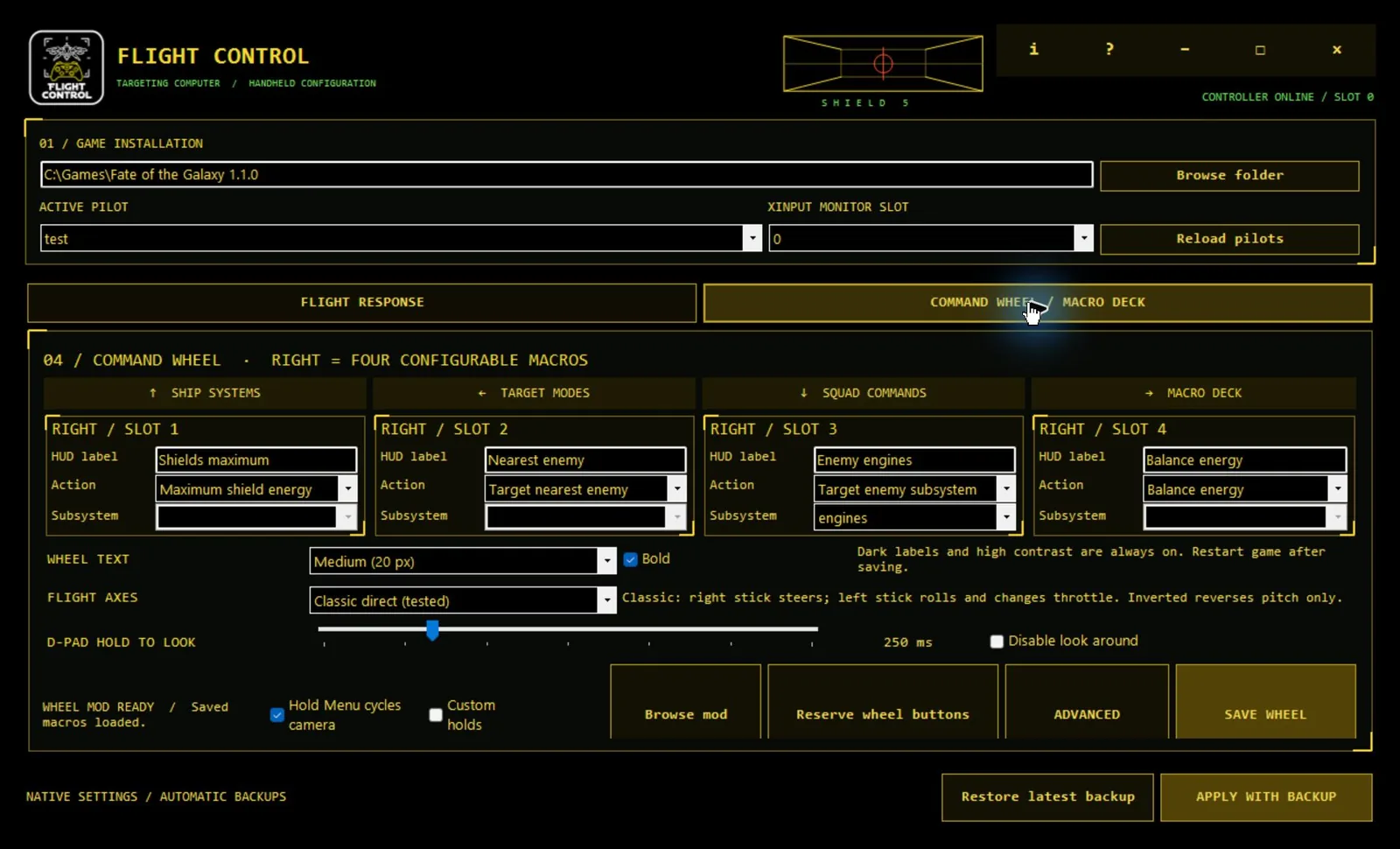
Two tabs hold the settings. Flight Response writes native pilot settings with Apply with backup. Command Wheel / Macro Deck writes the wheel configuration with Save Wheel. Restart the game to load wheel changes. Press F1 or ? in the console for its built-in guide.
Macros #
The four cards on Command Wheel / Macro Deck are the four choices on the D-pad right wheel. Give each a short HUD label and an action:
- Maximum shield energy
- Target nearest enemy
- Target enemy subsystem: engines, weapons, shields, navigation, turrets or sensors
- Match target speed
- Balance energy
- Cycle boarding party task (Assault missions)
Subsystem targeting needs a live, visible enemy with a matching targetable subsystem, and is single-player only. If the target or subsystem isn't valid, the macro shows a message and does nothing. Labels are display text only, never scripts.
Close the game, click Save Wheel, then restart the game. The previous macro file is backed up to FotG_Gamepad_Wheel/ConfigBackups first. If the wheel mod lives somewhere else, use Browse mod to point at its FotG_Gamepad_Wheel folder.
Layouts, profiles and holds #
Advanced layouts
Click Advanced to move top-level wheel choices up or down, or reset a panel. On the Squad tab this reorders only the first communications page; later game menus keep their native order. Use layout keeps your changes in the console until you press Save Wheel.
Share a profile
Export profile saves a portable JSON file with layouts, macros, flight axes, wheel text and hold options. It contains no game path or pilot data. Import profile validates a file and loads it for review; Save Wheel and restart to apply it.
Custom holds
Off by default. Tick Custom holds to reveal Edit…, where A, B, X, LB, RB, L3 and R3 can each get one long-press action with a 250–1000 ms delay. A short press keeps the button's normal action on release. Y and both triggers always fire directly.
Reserve wheel buttons
For a pilot created after installing, close the game and press Reserve wheel buttons once. The console backs up the pilot and settings INI, then clears only joystick buttons 0–5 (A, B, X, Y, LB, RB), 7–9 (Start, L3, R3) and D-pad values 128–131 from that pilot's native bindings. Other bindings and the controller selection stay as they were. Pilots in other formats are left alone.
Flight response #
| Setting | What it does |
|---|---|
| Sensitivity 0–9 | The game's native joystick response |
| Centre deadzone 0–45% | Stick movement ignored around centre. Too much costs fine aim. |
| Use mouse to fly | The game's native mouse-flight option. Leave it off for gamepad flight. |
To measure drift:
- Release both sticks and rest the controller on a stable surface.
- Click Sample center, leave the sticks alone for several seconds, then click Finish sample.
- The suggested deadzone is the largest drift seen plus three points, capped at 45%. If you touched a stick, sample again.
- Close the game, click Apply with backup, and test in flight.
This measures drift in software; it doesn't recalibrate the controller. For the feel of the earlier v1 profile, use sensitivity 5 and deadzone 10%.
Restore and uninstall #
Every change to a pilot is backed up first, in timestamped folders under kn_portable/HardLightProductions/FreeSpaceOpen/ControllerSetupBackups.
- Close the game and open the console.
- Select a pilot and press Restore latest backup. This restores the whole pilot file and matching FotG settings INI as they were at backup time, including other settings saved then. Current files are backed up before the restore.
- Repeat for each pilot whose original controls you want back.
- To remove Flight Control, delete
GamepadMods/FotG_Gamepad_Wheeland the two launchers, Play with Gamepad Wheel.exe and Configure Gamepad Wheel.exe.
The original game launcher works throughout.
Troubleshooting #
Setup says “First run required”
The game has no native pilot yet. Launch the unmodified game, create a pilot, exit, then click Check again in Setup.
Setup can't find the game
Click Browse game… and select the Fate of the Galaxy folder that contains kn_portable, not kn_portable itself. If Setup says Game folder not found, the folder you chose has no kn_portable.
Setup says “Unsupported game version”
Flight Control 1.0.0 supports Fate of the Galaxy 1.1.0 and 1.1.1, and Setup names the version it found. Older preview builds accept 1.1.0 only, so download the current ZIP if you have 1.1.1. After a later game update, wait for a compatible Flight Control release.
Setup says “SDL3 engine not found”
The game is there but its FSO 26.0.1 SDL3 engine isn’t. Launch the game once from Knossos so it installs the engine, then click Check again.
Sticks steer the wrong axes
Run Install / Repair again with the controller connected, so Setup can detect it through SDL3 and select it in the wheel profile. Then check that Flight Axes is Classic direct (tested), press Save Wheel and restart the game. An old controller ID in the wheel profile caused this in earlier test builds.
Buttons fire two actions at once
The pilot's original bindings are still active. Close the game, select the pilot in the console and press Reserve wheel buttons. New pilots always need this once.
No wheel appears, or changes don't show in game
Start the game with Play with Gamepad Wheel.exe, not the original launcher, and make sure the bridge icon is in the tray. Wheel settings load at start-up, so restart the game after Save Wheel.
The console shows no controller
Try XInput slots 0–3 and make sure a handheld PC is in gamepad mode, not mouse or desktop mode.
Save, reserve or restore is blocked
Close every FreeSpace Open engine window. The console won't write pilot or wheel files while the game is running.
A macro or order does nothing
The wheel uses the game's own order list and can't force an order the mission forbids. Energy and subsystem actions work in single player only, and subsystem targeting needs a valid visible target.
Help, About or the icon is missing
Extract the complete ZIP, not just the EXE files, and keep the folders together.
Tested so far #
Flight Control 1.0.0 has been tested on a Lenovo Legion Go 2, ROG Ally X, Xbox controllers and generic gamepads, with Fate of the Galaxy 1.1.0 and 1.1.1. Testing has focused extensively on practice missions, refining how the controls feel while flying. The campaign and multiplayer have not yet been tested, so you may find:
- Mission-specific menus or screens that need the stick pointer
- Squad orders or macros that behave differently in campaign missions
- Multiplayer behaviour that hasn’t been checked
This is the first public release. Put it through campaign missions, try your own configurations, and send bugs, awkward interactions or ideas for improvement to [email protected]. The full test checklist is on GitHub.
Report a problem #
Bugs, awkward interactions and ideas are all welcome. Email [email protected] or open an issue on GitHub. For a bug, include:
- Game version, Windows version and controller model
- Ship and mission
- Whether you launched with Play with Gamepad Wheel.exe
- The exact steps that lead to the problem
Please don't post pilot files, logs or screenshots that show personal paths or names in public issues.
Credits and licenses #
Flight Control (FotG Gamepad Wheel) is by Manic Trash Panda, coded with ChatGPT.
Fate of the Galaxy was created by its volunteer development team. FreeSpace Open is developed by the FreeSpace Source Code Project; Flight Control uses its Lua scripting interface and includes no engine binary. Star Wars and related names belong to Lucasfilm Ltd. and Disney. Flight Control is an independent, unofficial fan tool, not affiliated with or endorsed by any of them.
The original code, companion programs and documentation are under the MIT License. The Flight Control emblem may be shown and redistributed only with this tool, under its artwork terms. Neither covers the game, the engine, or third-party names and material. Source: github.com/wray2064/FotGFlightControl.